Estimate calories from a meal photo
Published by Evercrest Technologies LLC · Reviewed October 3, 2026
NexoPlate Pro turns a meal photo into a starting estimate of calories, protein, carbohydrates, and fat. You stay in control of what reaches your food log: review the foods and portions and correct the result before saving.
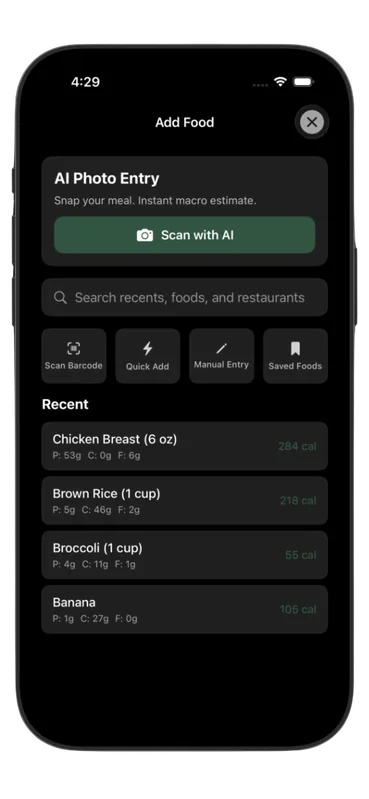
From photo to food log
- Open Add Food and tap the camera icon. Photograph the meal in good light, with the food and portion visible.
- Review the suggested foods, calories, and macros. Check whether the result includes sauces, oils, toppings, and drinks.
- Adjust a food, serving size, or nutrition value when you have better information, then save the meal.
What a photo can miss
A photograph cannot directly measure weight or reveal every ingredient. Mixed dishes, hidden dressings, and restaurant portions can lead to a different result from the food you actually ate. A clearer photo helps recognition, but it does not turn an estimate into a measured portion.
When you have a package label, use the free barcode scanner and compare its result with the label. For a known recipe or portion, manual entry lets you use your own values.
Pro, internet access, and data processing
AI Photo Entry is a Pro feature with usage limits. It requires an internet connection: selected photos and notes are sent securely for processing. Result caches and other service records have separate retention; see data and compliance.
Review the estimate before relying on it
Use our practical review method to compare estimates with labels or weighed portions. We do not claim a tested accuracy percentage or clinical validation.
Photo troubleshooting and Coach help · Download NexoPlate and compare plans